Docs
Try it in your browser · 5 min
Rather press keys than read? The demo walks you through the bar in nine short tracks. Short answers for people below. Agents read llms.txt and the full guide in /skill/guide.md.
Install
With Homebrew:
brew install zalewskigrzegorz/tap/gzymsbrew upgrade gzyms updates it. On a Homebrew install the built-in updater stays off.
Or download the zip from GitHub Releases and move gzyms to Applications. That copy updates itself through Sparkle. Settings → About has Check for Updates… and Automatic updates.
Automatic updates works both ways. Turn it on in a Homebrew install and gzyms warns you that brew and Sparkle can break each other’s update. In the config it is [updates] automatic = true or false, written only when it differs from the default.
gzyms starts at login from the first launch. Turn that off in Settings → General → Login, in System Settings → General → Login Items, or with [bar] start_at_login = false.
You need macOS 26, Accessibility and Full Disk Access. More in Requirements.
For developers
One CLI to rule them all
gzyms notify puts a banner on the bar. Give it --id deploy and the next call with the same id updates that banner instead of adding a new one. It also takes a link, a sound and a screen. --alt-link <url> gives it a second action, and --alt-label "Open in agent" names it on the banner’s hints. Without a label the hint says alt.
gzyms set <key> <value> changes any setting. Every setting lives in ~/.config/gzyms/config.toml, so you can keep it in your dotfiles. The phone push keys are the one exception. They stay in the Keychain, so your dotfiles hold no secrets. There is also gzyms theme, gzyms settings and gzyms report.
gzyms help lists every command, gzyms help notify shows one command’s flags. gzyms completions install turns on tab completion in zsh, bash, fish or nushell.
Plugins are a small script
gzyms plugin new <name> gives you a working plugin folder in ~/.config/gzyms/plugins/. A plugin is a plugin.toml and a command in any language that writes JSON to stdout. Every option you declare shows up as a field in Settings.
Settings → Plugins has one row per plugin: its icon, name, one line, its state (running, error or You changed it) and a switch. A click or Enter opens a side panel with the description, the error, Update, the options and Remove. Esc closes that panel first. Add a plugin, from the catalog or from a folder, sits under the list.

Plugins from the catalog update themselves when gzyms starts, before they run, and your options stay. A plugin you changed is left alone. When the catalog has a newer version, its panel shows Update, which keeps your copy as <name>.bak-<date>. A .gzyms-catalog file in the folder tells your edit from an old copy.
A plugin’s notifications wait on its pill, with a count in the corner and a list at the top of its popup, not under the bell. dd clears that list like any other.
A plugin’s banner can have a second action too: alt_label names it and alt_link is the URL it opens. With a label and no link, gzyms sends notify_alt back to the plugin, so the plugin does the work itself.
A notification’s row ties it to one of the plugin’s rows, so it leaves the list once that row is gone. {"log":"..."} writes a line to the gzyms log. :glyph@colour: in a text draws an SF Symbol in a theme colour or #rrggbb.
The full protocol is in /skill/plugins.md. Or ask your agent to write one for you.
GitHub on the bar
Two plugins from the catalog, both on top of the gh CLI you already have.
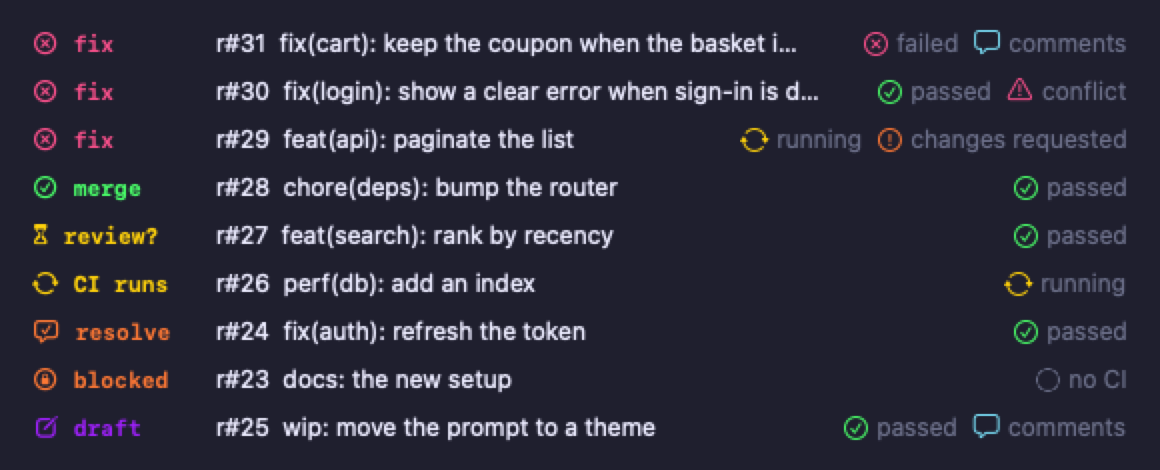
gzyms plugin add gh-prs shows your pull requests behind a branch icon, one glyph per state with the number of PRs in it: fix (red cross), merge (green tick), comments (blue bubble) and draft (purple pencil). A PR counts in every state it is in, a draft only as draft. Each row in the popup shows its CI (passed, running, failed or done) and why it waits: a conflict, changes requested, run e2e, comments. A new approval or comment gets a notification.
gzyms plugin add gh-builds watches CI of your pull requests and of the branches you pick: failed in red, running in yellow, passed in green, each PR or branch once. A cancelled check counts as passed. You get a notification when a run fails or ends green.
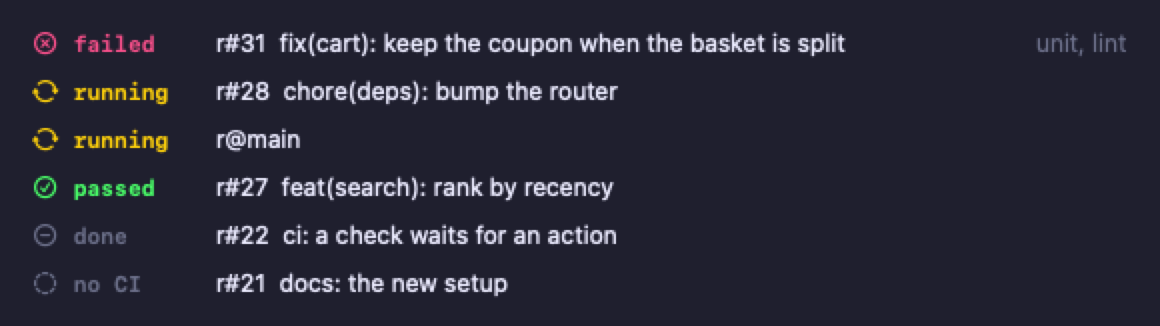
On both, green means it passed, red means it failed, yellow or peach means it waits.
Both take a normal GitHub search, so org:NAME or repo:OWNER/NAME narrows them. One call every 2 minutes uses about 26 of the 5000 points GitHub gives you an hour.
Your agents on one pill
One pill for every coding agent. Each agent has one row that says what it waits for, like the question it asks or the command it wants to run. Agents that wait for you come first. Idle ones fade to the bottom. You get a ping when one waits for you and when a long run is done. Answer it and the ping goes away by itself. Click a row or the banner to jump to that agent.
While an agent works, a light runs around the pill. Settings → Animations has a breathing border, a glow, a still border or none.
Agents come from sources, and each source has its own switch in Settings → Agents. A new source never breaks the ones you have.
- tuios: every agent in your tuios panes. A click moves tuios to that pane.
- Claude Code: sessions in any terminal and in Claude Desktop, named by their title. Install its plugin with the button in Settings → Agents or with
gzyms agents install claude. With both on, a Claude session inside tuios shows once, from tuios.
More agents are on the way.

Log watcher
Point it at a log file and a pattern. When a new line matches, you get a banner, and you can make it armageddon if that line means production is on fire.
Keyboard first
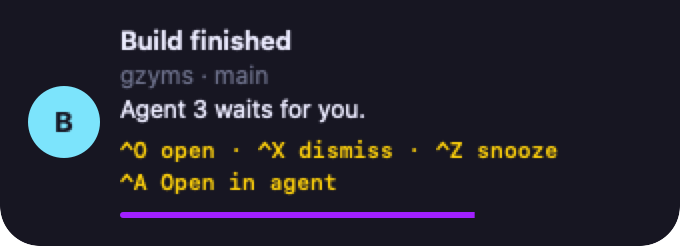
Banners answer the same keys as the rest of the bar: o opens, x lets it go, z snoozes. Some banners have a second action too, then a runs it. When more wait in the queue, n and p walk through them, and so do j and k. The banner shows its keys, so you never have to remember them.
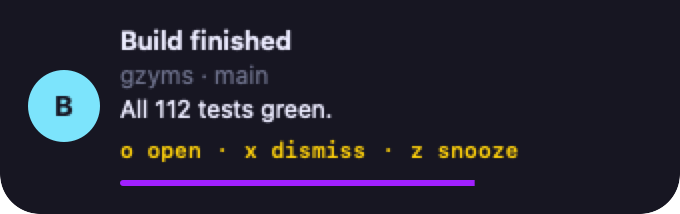
A named second action shows its name in the hints, like Open in agent.
A leader key puts a letter over every pill. Then j and k move, Enter opens, x clears, Esc leaves. In an open popup h and l jump to the next pill’s popup. Settings too: h l for tabs, j k and Enter. While the leader is active, the banner countdown pauses, like with the pointer on it.
Command palette
Press the leader, then Space. One search goes through Settings tabs, actions, themes and the notifications in gzyms’s lists. A few letters in order are enough: tst bnr finds Test banner, slack kasia finds Kasia’s Slack message. dnd 1h, dnd 30 or dnd 1h30 turns on Do Not Disturb for that long.
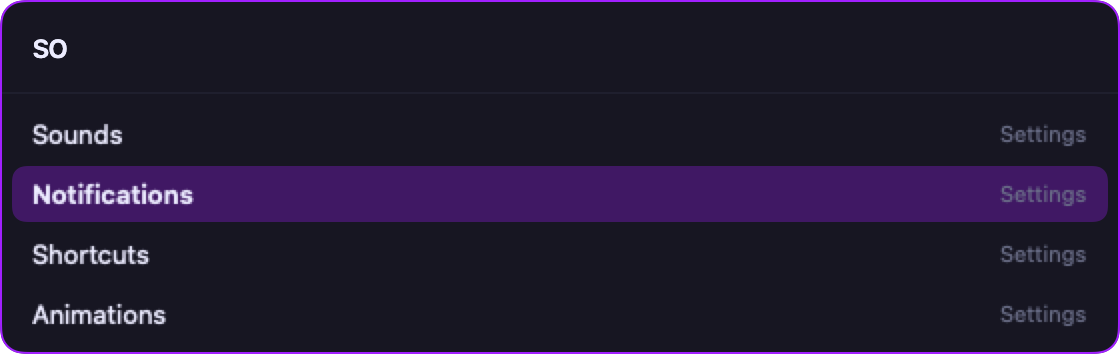
Arrows pick, Enter runs, Esc or a click outside closes. On a notification Enter is a click and ⌘Enter runs its second action. The actions: Do Not Disturb on and off, Test banner, Usage HUD, Report a problem, Check for updates, What’s new, Open config.toml, Open the event log, Restart, Quit and Theme followed by its name.
Dock badges on the bar
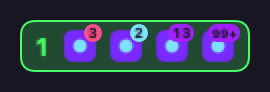
gzyms reads the red counts from the Dock and puts them on the app’s icon in the bar. So you can hide the Dock and still see that Slack wants you.
The colour says where a count comes from. Red is the app’s own Dock badge, and only the app clears it. Clearing a list in gzyms leaves it alone. Blue is what waits in gzyms’s list. Purple means both, and the number is their sum. It is always the real number up to 99+. More digits get a smaller font, so the icon stays in sight. In the grayscale theme blue and purple come out as much the same grey.
Notifications
Five levels
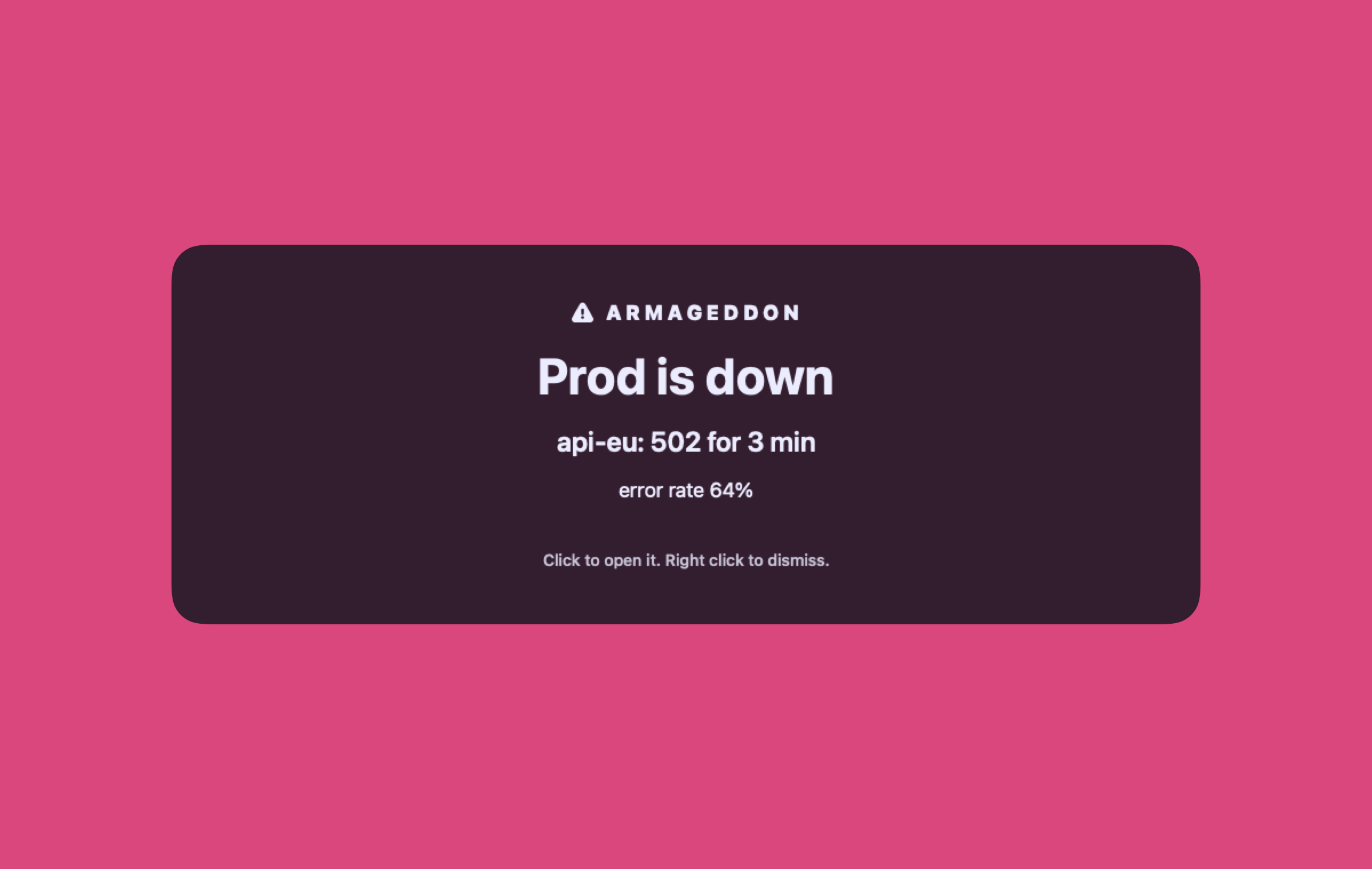
Info goes away after 6 s, warning after 8 s, error after 12 s. Critical waits until you act. Armageddon turns every screen red and blinks until you click, and it calms down when Reduce motion is on. A rule per app can raise any app to critical or armageddon.
One at a time
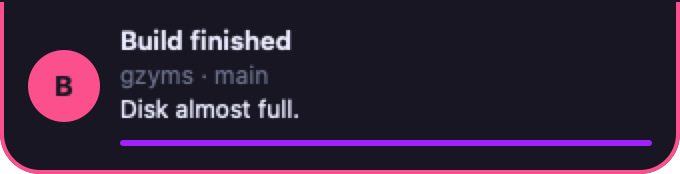
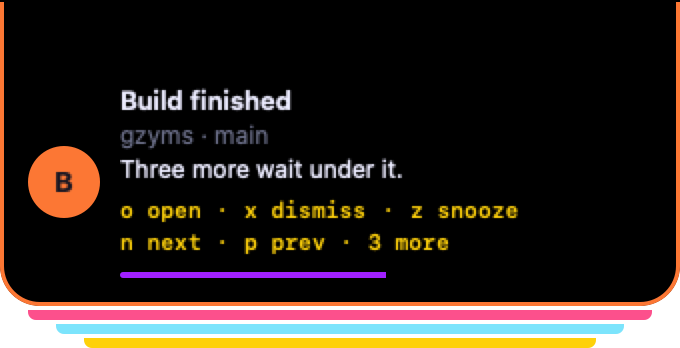
Only one banner is on screen. Up to three wait behind it. They come up in the order they arrived, whatever the level. Only an armageddon cuts in at once, and the one it pushed aside keeps its time left. Anything past that goes quietly into its list. n and p walk the queue.
Trackpad and pointer
Hand on the trackpad? A two-finger click runs the second action. A long sideways swipe with two fingers lets the banner go. Up and down step through the ones that wait. Rest the pointer on a banner and its hints show. The one under the pointer lights up, and a click runs it. The letters the hints show act right away too, no leader needed.
Snooze that comes back
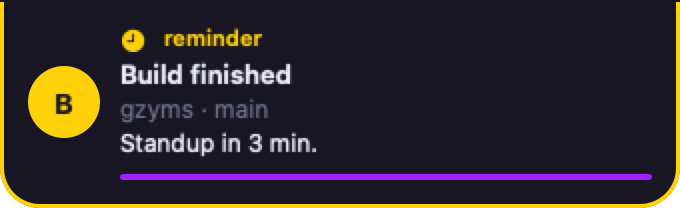
Snooze a banner for 3, 5, 10 or 30 minutes. It comes back as a gold reminder and stays until you deal with it.
Snoozes survive a restart of gzyms too.
Nothing gets lost
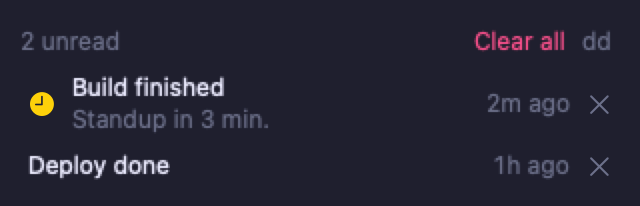
A banner you ignore waits in its app’s list. Click the app’s icon on the bar to see it. A bell holds things from apps without an icon on the bar. Press x on a banner and it is gone for good.
The lists survive a restart of gzyms.
Do not disturb
Click the moon on the bar and banners go quiet. Everything still lands in its list, so you catch up when you are back. gzyms dnd on [minutes] and gzyms dnd off do the same from a script. Armageddon and meetings still get through, and dnd.breaks_through changes that.
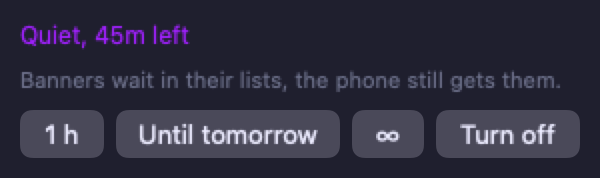
Banners from other apps, at once experimental
A Slack or WhatsApp message shows on the gzyms bar in under half a second. gzyms reads the macOS banner through Accessibility the moment it appears and moves the real one off screen, so you see it once, in gzyms.
Apps that show no banner still get through. Their text comes from the Notification Center database a few seconds later, and nothing shows twice. The app’s icon can show the moment macOS logs the delivery, before the text.
A macOS update can break the trick. Then the text comes from the database a few seconds later. Turn it off with Instant banners in Settings → Hacks, or banner_ax = false under [notifications]. Instant app icons is signal = false.
A macOS Focus, like Sleep, Work or Do Not Disturb, holds every banner back on purpose. Then nothing is instant and the text comes from the database about 5 s later. Turn the Focus off and banners are instant again.
Sometimes Notification Center hangs and shows no banners at all. Restart a hung Notification Center fixes that.
Don’t run NotificationNanny at the same time. Both would grab the same banners.
Click opens the original experimental
Click a banner from Slack, WhatsApp or Calendar and you land where the original notification would take you: the thread, the chat, the event. Not just the app.
This is a trick, not an API. macOS gives a notification’s details, like the thread, only to the app that sent it. So gzyms presses the macOS banner while it is still up. Once it is gone, gzyms opens Notification Center with 🌐 N, moves it off screen so nothing flashes and presses the same notification there.
A macOS update can break this. Then gzyms quietly opens just the app.
To make both tricks work:
- In System Settings → Notifications → the app, keep Allow notifications, Desktop and Notification Center on and turn Play sound off. gzyms plays the sound. Lock Screen, Badge, grouping and summaries don’t matter.
- At the top of Notifications set Show previews to Always or When Unlocked, once. Apps on Default follow it.
- In System Settings → Keyboard → Keyboard Shortcuts → Mission Control, keep Show Notification Center (🌐 N) on. gzyms presses it to reach a notification whose banner is already gone.
- Give gzyms Accessibility and Full Disk Access.
You don’t have to click through it alone. Settings → Apps says how many apps need a change in macOS, and Set up step by step opens their pages one by one. A small window next to System Settings shows what to click, and gzyms moves on by itself once you did. Skip this app or Stop when you like. Closing System Settings ends it too. Turn off your tiling window manager, like HyprMac, while you set up.
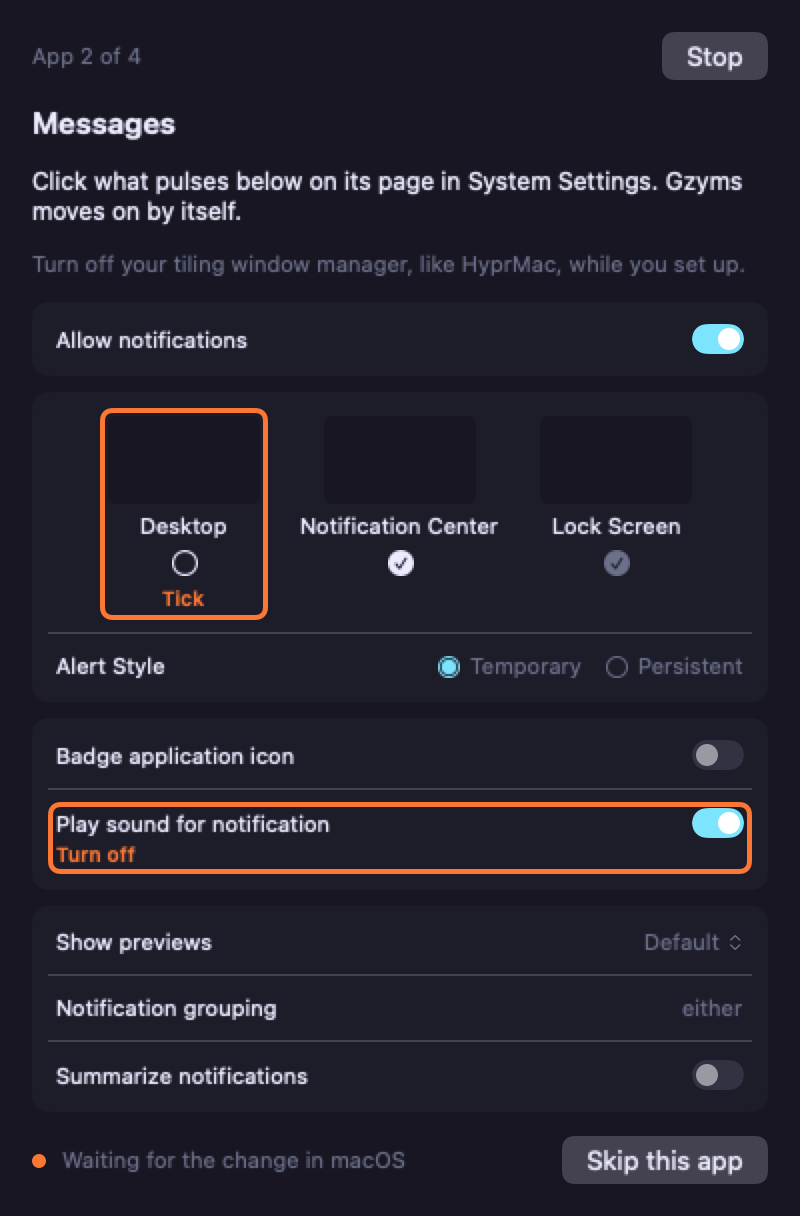
Mail is the exception. macOS doesn’t let you set anything for Mail, so a Mail banner opens just Mail. Apps without a sound switch, like Xcode, Safari or Raycast, get no warning about sound.
It’s on by default. Turn it off with Open the exact chat in Settings → Hacks, or open_original = false under [notifications] in config.toml. Then a click opens just the app. To read an app’s macOS settings, gzyms needs Full Disk Access and either Open the exact chat or Instant banners on.
Rules per app
Every app that sent something is in Settings → Apps. Drag one in, or use Choose app…, to set it up before it sends anything. Click an app and pick what its notifications do:
- Banner and sound: a banner, the gzyms sound and a count on the bar.
- Quiet: a banner and a count, no sound.
- Count only: just the app’s icon with a number.
- Important: like Banner and sound, as critical. It gets through Do Not Disturb when critical is ticked there.
- Off: gzyms skips the app, nothing lands in its list.
More sets each part on its own: Banner, Sound, Count on the bar, Phone, the level (normal, critical, armageddon) and Skip it. A mix shows as Custom. Phone works with any preset. In the config it is [notifications.apps."<app id>"], with skip = true for Off. Remove from list forgets the app and its rule. It comes back when it sends something again.
Under the presets sits a copy of the app’s page in macOS. What needs a change pulses, with what to do. Open in System Settings opens the real page, and the copy follows your clicks live.
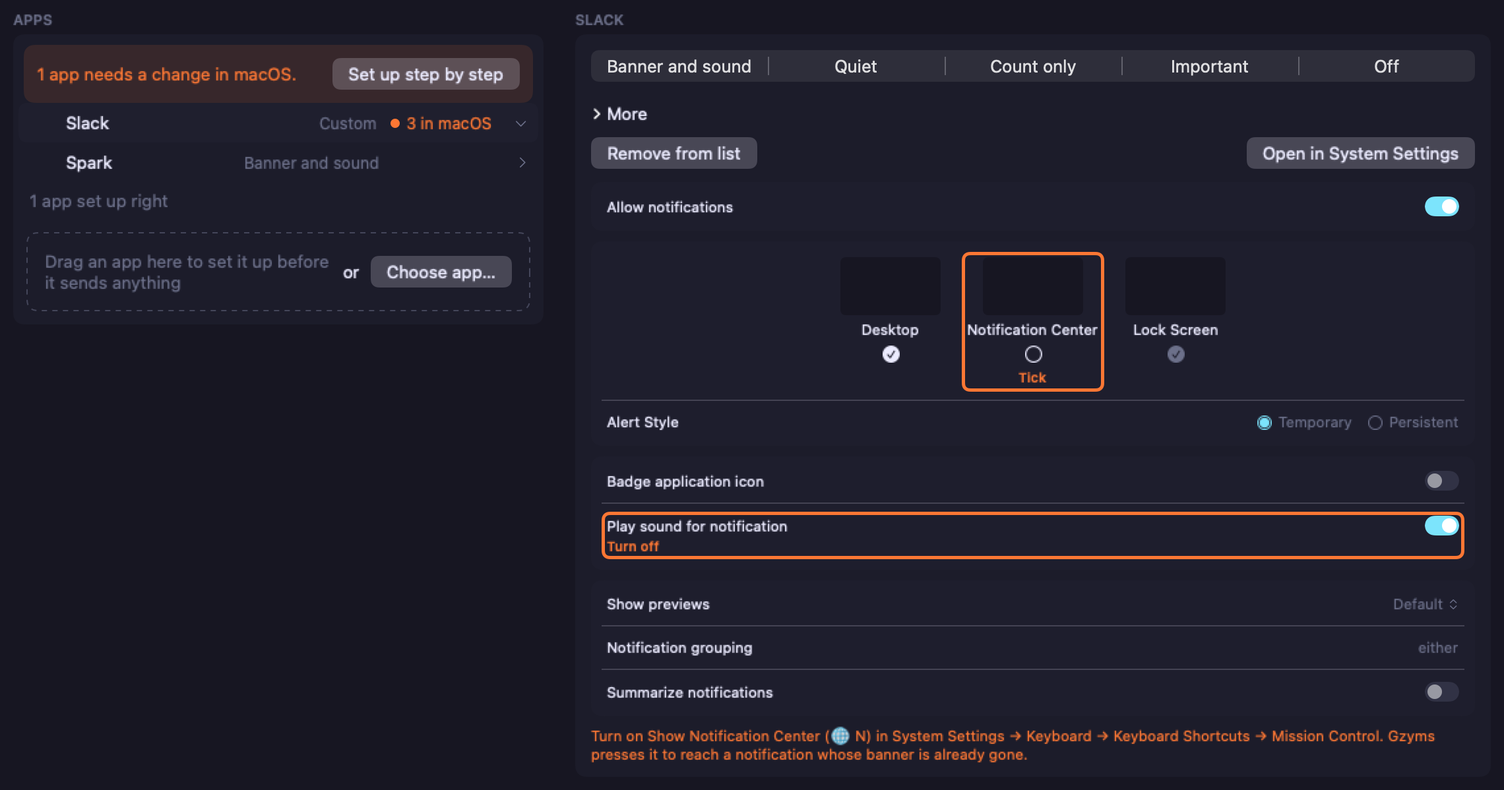
Same notification, several apps
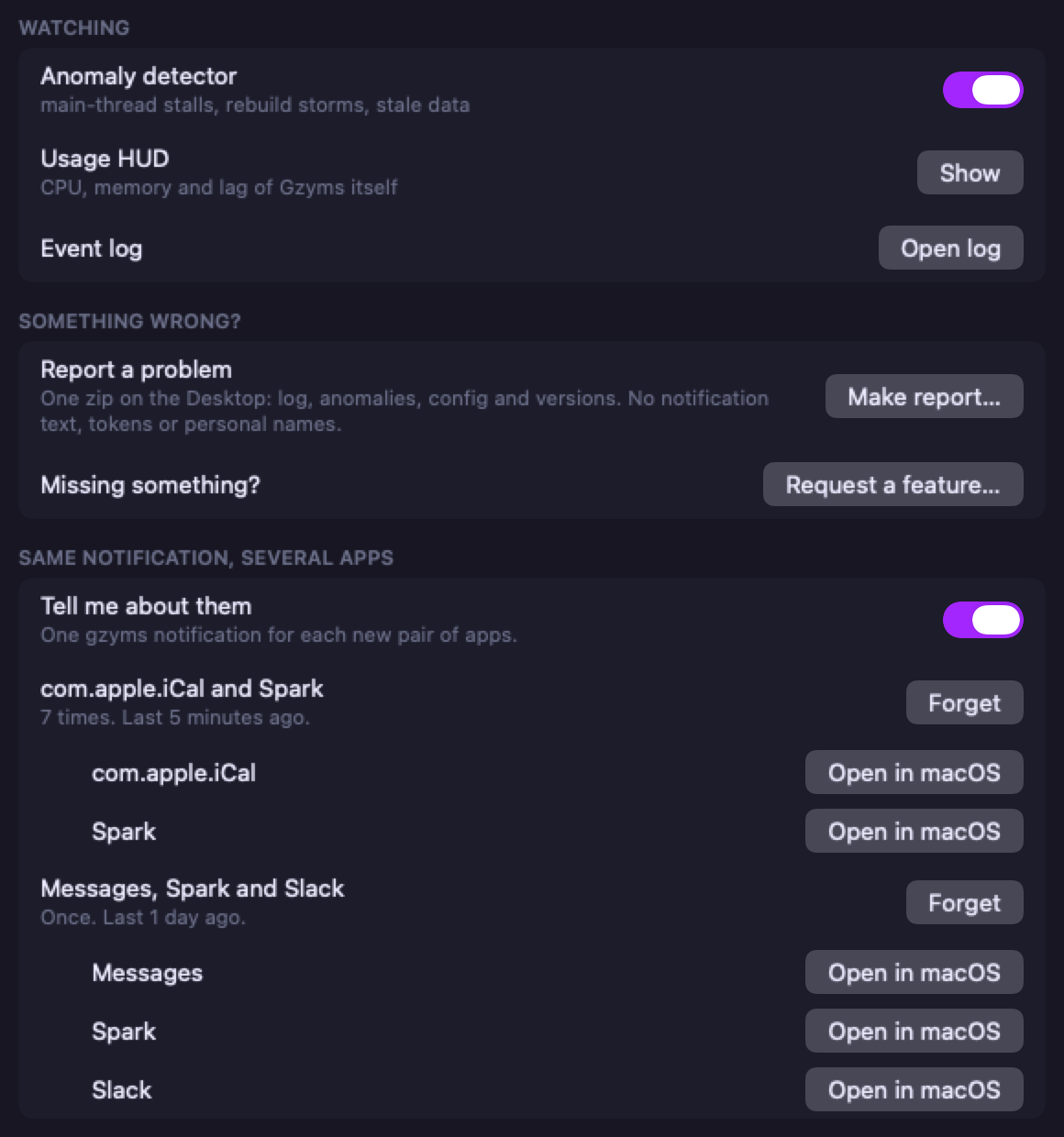
When two or more apps send the same notification, or almost the same, within about 10 s, gzyms tells you once per pair of apps: Apps send the same notification. A click opens Settings → Debug. Under Same notification, several apps you see which apps, how often and when last, with Open in macOS for each app’s notification settings, Forget, and a Tell me about them switch.
gzyms drops nothing by itself. You decide which app goes quiet. The anomaly log keeps only the app names, never the text.
Away from the Mac
When a banner sits untouched for 5 minutes, gzyms sends it to ntfy, Pushover or any webhook that takes JSON. By default only critical and armageddon go out, or any app you mark. There is no gzyms app for the phone. You need ntfy or Pushover there.
The address and the Pushover keys are secrets, so gzyms keeps them in the macOS Keychain and never in config.toml. Set them in Settings → Notifications, or pipe them in so they stay out of your shell history: pbpaste | gzyms set notifications.phone.pushover_token.
Meetings
A calendar event with a call link (Meet, Zoom, Teams, Slack huddle, Webex, Whereby, Jitsi) gets a banner that does not go away on its own. It comes 3 minutes before the start, and calendar.points changes that. A snooze brings it back at the start and 3 minutes in. Before you join you can check your camera, mic and speaker. Calendar access is optional.
The mic and speaker you pick there become the macOS default. That helps only when your call app uses the system default device. If Zoom or Teams has its own device set, you pick it there, not in gzyms.
The bar

The file shelf
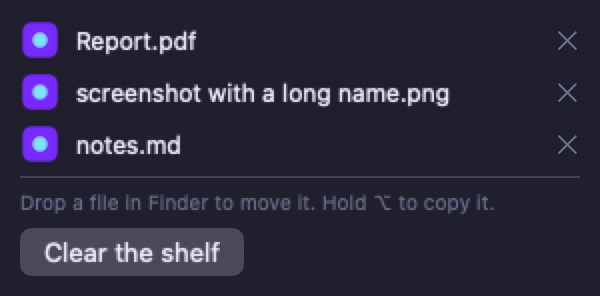
Drop a file under the notch and it waits there.

Drag it out and it moves there. The shelf is empty again. Hold ⌥ while you drop and it copies instead.
⌃⌥M mutes the mic
⌃⌥M mutes your mic in every app. You can change the keys in Settings. The mic pill shows the input level, so you see it worked, and the audio pills show which device you use.
Your own device icons
Two pills with the same laptop? In Settings, Audio, pick a device and choose its icon from a grid, or type any SF Symbol name. A tag of up to 3 letters next to the icon tells two speakers of one kind apart. From the terminal: gzyms set audio.icons."MacBook Pro Microphone" mic.
Devices you never want
That virtual mic you tried once, the TV speaker, your iPhone. Ban them and they stop showing up. In Settings, Audio, pick the device and turn on Hide, or set [audio] banned = ["exact device name"] in the config.
A banned device is gone from the sound and mic popups on the bar and from the lists before a meeting, and the keys that switch devices skip it. If macOS picks it on its own, you still see it, greyed out with a tick. Ban the iPhone mic or speaker and its Continuity camera leaves the meeting preview too.
Like the picker before a meeting, this changes the macOS default only. A call app with its own device set does not care.
System pills
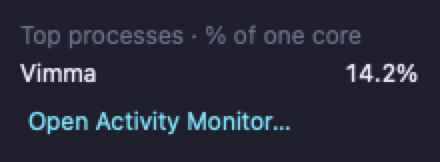
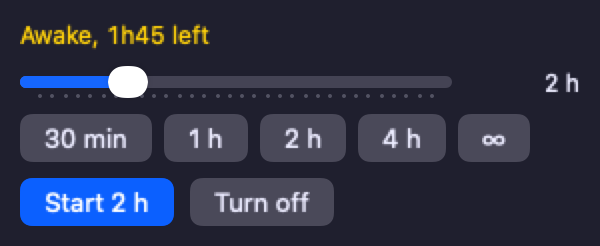
CPU with the top processes, memory, network up and down with a Tailscale badge and a warning when a proxy is still on, battery with time left and a note when the charger is too weak, caffeine that survives a restart of gzyms, and what is playing now.


Nothing jumps
Numbers have a fixed width, so a changing value never pushes the rest of the bar. Old data dims instead of pretending. If you take Accessibility away, the bar shows ⚠ instead of a wrong count. A change to Full Disk Access shows after gzyms restarts, and Settings → Permissions has the Restart button for that.

Notch and monitors
On a screen with a notch the banner grows out of the notch and never spills onto a monitor above. On other screens it sits under the bar. It shows on the screen you work on, or the one you name with --screen.
How a banner arrives
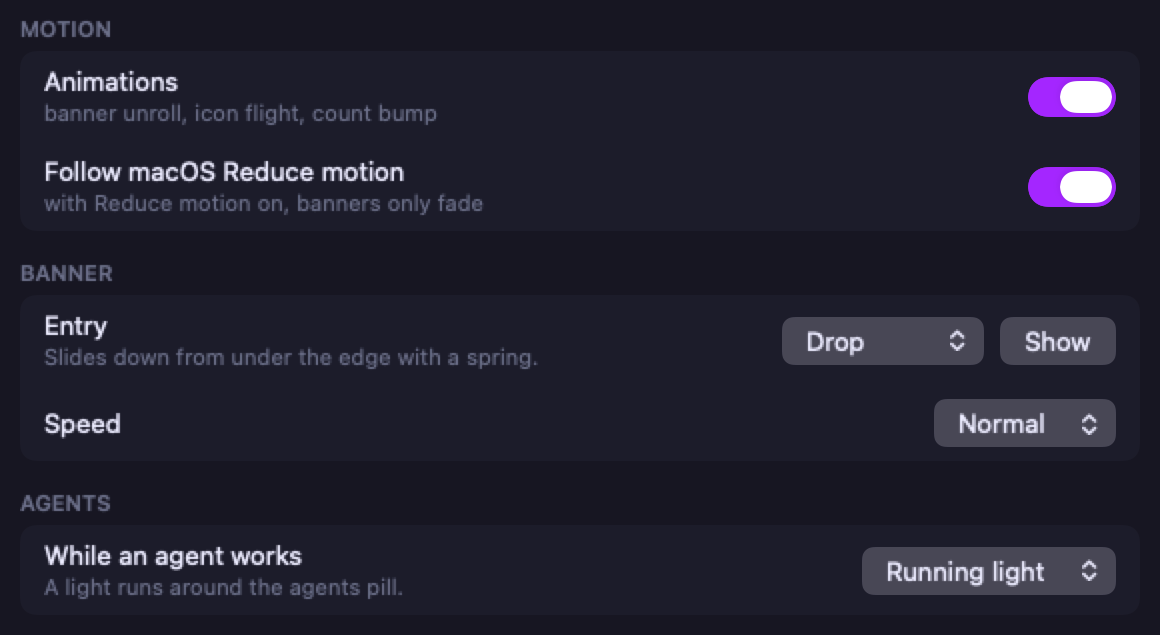
Settings → Animations picks how a banner comes in. Drop, the default, slides down from under the edge with a spring. Icon drops the app’s icon first and the text unrolls from it. Notch grows out of the notch. Unroll is the old entry. Pop grows from 85% as it shows up. Fade blends in where it stands. Speed is slow, normal or fast.
Animations off means nothing moves at all. With it on and macOS Reduce motion on, every style turns into a fade, unless you turn off Follow macOS Reduce motion. In the config it is [appearance] banner_entry and animation_speed, or gzyms set appearance.banner_entry pop.
The countdown is a thin line under the banner’s text.
Settings
Click the gzyms logo on the bar and Settings opens on the tab you used last. Click it again, or press ⌘,, and it closes. ⌘Q in Settings quits gzyms. About has Check for Updates…, Automatic updates, Learn Gzyms, which opens this site’s browser demo, and Quit Gzyms. It also thanks Sparkle, NotificationNanny and TOMLDecoder.
The macOS menu bar is one key away
gzyms sits where the macOS menu bar was. Need File or Edit of the app you use? Hold ⌘ with the pointer on the bar and gzyms steps aside. Move the pointer off the bar and it comes back.
Tiling or not
Workspaces come from OmniWM, HyprMac, AeroSpace or Mission Control, whichever runs. OmniWM tells gzyms about a switch at once. Without a tiling manager the bar shows one desktop with your Dock apps.
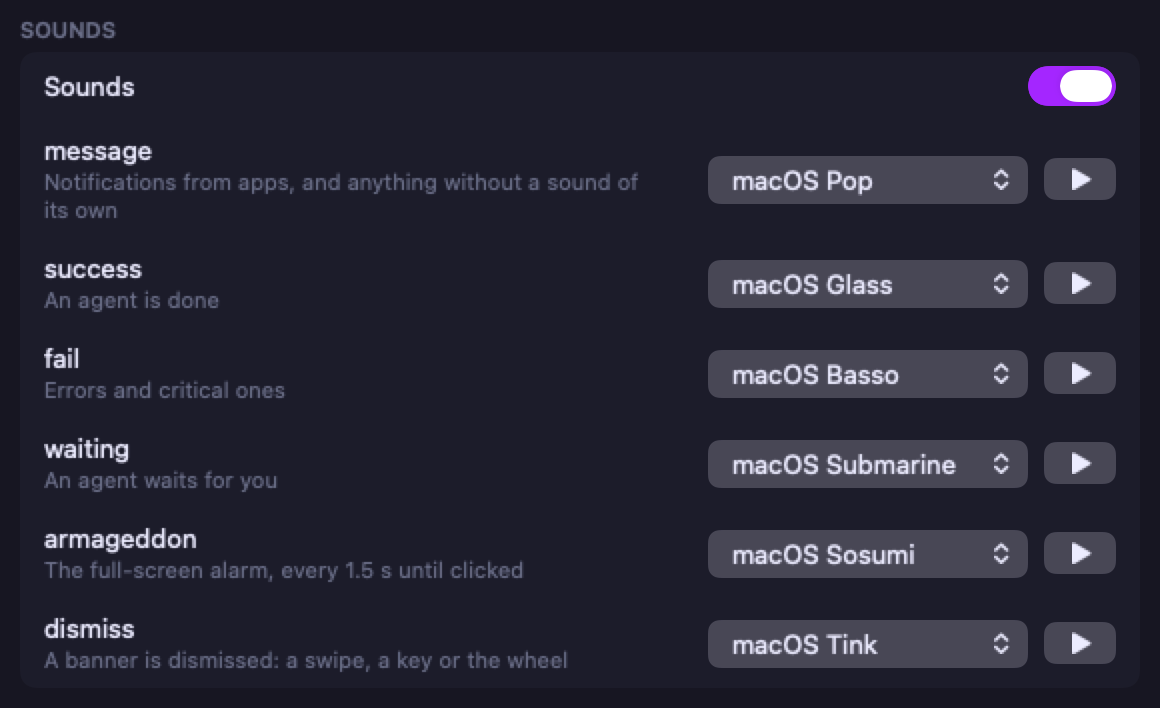
Sounds
Every kind of event can have its own sound: the gzyms tone, a macOS sound or your own file. Letting a banner go has one too, Tink by default. Change it in Settings or with [sounds] dismiss in the config.
Bug reports
Something broken, or an idea? Use GitHub Discussions, not issues. Settings → Debug → Make report… puts a zip on your Desktop and opens a new discussion. Attach the zip there. gzyms report makes the same zip from the terminal.
The zip has the log, the config and the versions. It leaves out the text of your notifications, tokens like Pushover or ntfy, and personal names: calendars, audio devices, log watcher files. Your home folder shows as ~ and sites from browser tabs as <site>.
Ask the bar what it sees
A banner doesn’t show, or a key does nothing? Run gzyms debug before you guess. The running bar answers, since it holds Full Disk Access and Accessibility. One fact per line, never the text of a notification. --json gives one flat object.
gzyms debug notifications: the Instant banners, Open the exact chat, Instant app icons and automatic restart switches, the grants, the Accessibility watcher, the panel, the last banner (which app, how long ago, from Accessibility or the database), the Notification Center restarts (how many, the last, waiting for a banner, given up), DND, the 🌐 N shortcut, and one line per app with what macOS lets it do.gzyms debug cpu: what the bar costs right now, measured for 3 s. The process CPU, how often the main thread wakes per second (60 or more means something animates every frame), panels built again, what runs now incpu.busy(animations, timelines, timers), and each window as on screen, covered or hidden. Acpu.busyentry for a hidden window is a leak. Run it before you restart gzyms, since a restart hides the cause.gzyms debug keys: the key tap (on, and how often macOS turned it off and why), Secure Input and which app holds it, the leader, the keyboard mode, the banner under the pointer and the app in front.
Without a topic you get notifications and keys. Two things are flagged on their own: a key tap that macOS turned off, and Secure Input held for a minute or more, since then no key reaches gzyms.
No telemetry
No analytics, no crash reporter, no usage stats, no ads. gzyms sends nothing home on its own.
A bug report or the log zip from gzyms report leaves your Mac only when you send it yourself. Phone pings go only where you point them: ntfy, Pushover or your own webhook.
The one request gzyms makes by itself is the update check, and only on a copy from GitHub Releases with Automatic updates on.
gzyms is open source under the MIT license, on GitHub.
Hacks
Some parts of gzyms ride on private macOS APIs or on tricks. They work today and a macOS update can break them. Settings → Hacks lists every one: what it does, its state right now, and the one switch or button it needs.
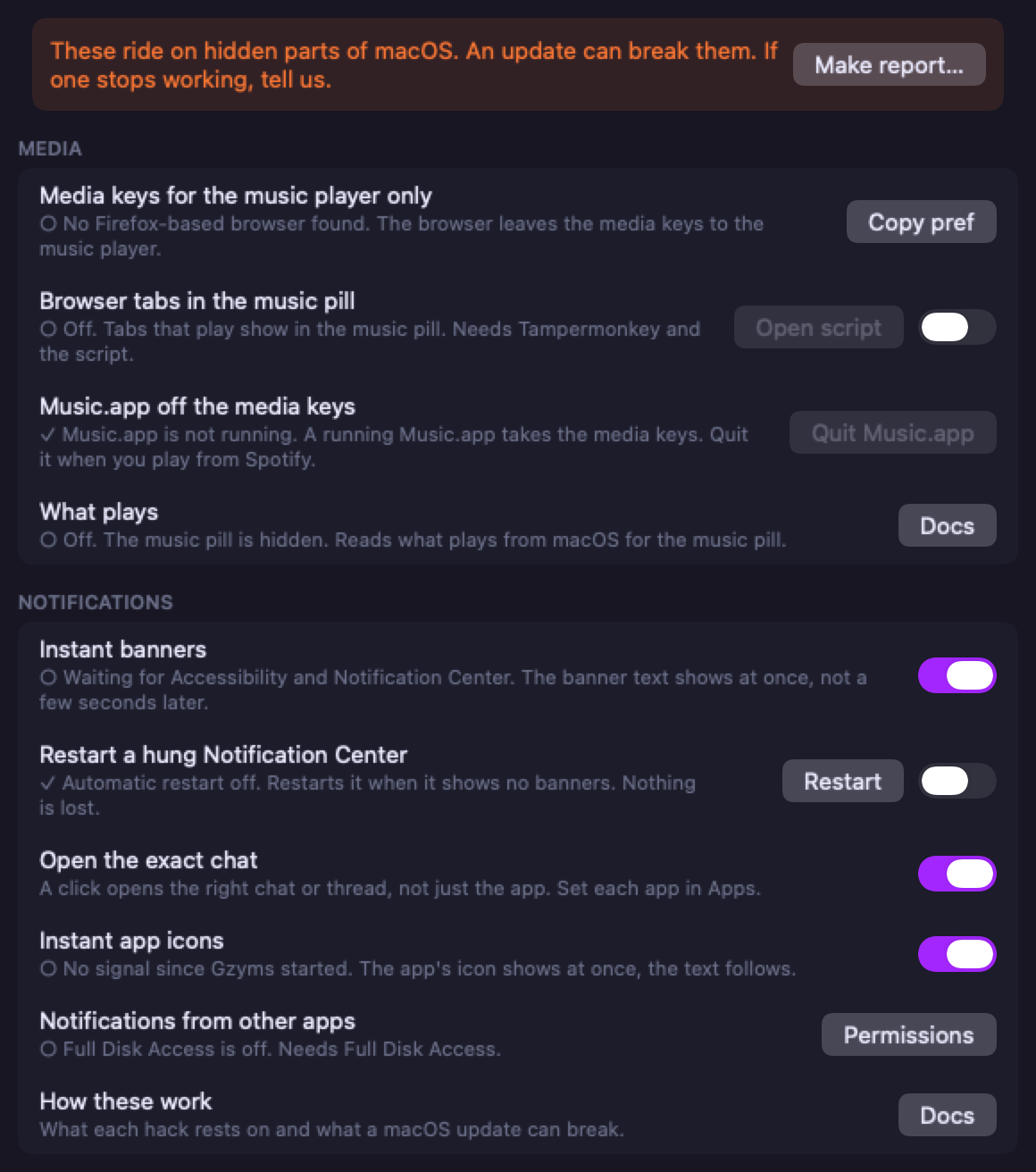
Media keys for the music player only
The browser leaves the media keys to the music player.
A browser with a video in some tab takes the play and pause keys from your music. Turn that off in the browser and the keys go to the music player again.
- Firefox, Zen, Vimma and other Firefox-based browsers: open
about:configand setmedia.hardwaremediakeys.enabledtofalse. It works at once, no restart. Settings → Hacks shows each profile it finds and whether the pref is off. - Chrome and other Chromium browsers: start them with
--disable-features=HardwareMediaKeyHandling. We haven’t tested this one.
Browser tabs in the music pill
Tabs that play show in the music pill. Needs Tampermonkey and the script.
With the pref off, macOS no longer sees the browser’s videos. A small userscript tells gzyms instead. Every tab with video or audio shows in the music popup with its own play, pause, next and Go to. One tab is one entry: what plays now, or else what played last.
Calls are not media. Meet, Zoom, Teams and any other WebRTC stream or camera stay out, and so do muted autoplays and previews.
- Install Tampermonkey. Violentmonkey works too, but there Go to can’t switch to the tab.
- In Settings → Hacks turn on Browser tabs in the music pill, or set
browser_media = trueunder[hacks]. - Press Open script and then Install in the page Tampermonkey shows.
After you update gzyms, install the script again from http://127.0.0.1:47100/gzyms-media.user.js, so it matches the new version.
gzyms listens on 127.0.0.1:47100 only, and only for its own script. It can play, pause, skip and focus what the script reported, nothing else.
A tab you just reloaded needs one click on the page before Play from gzyms works. Browsers block autoplay until you touch the page. Pause always works.
Music.app off the media keys
A running Music.app takes the media keys. Quit it when you play from Spotify.
Once the browser lets go of the keys, Music.app takes them even when it plays nothing. The same goes for any other player. Settings → Hacks has the Quit button.
What plays
Reads what plays from macOS for the music pill.
macOS keeps Now Playing in a private framework, and since macOS 15.4 only Apple-signed programs may read it. gzyms loads a tiny reader into /usr/bin/perl, which is one. If that fails, it falls back to osascript, which sees Now Playing only. If Apple closes both doors, the music pill goes away and the log says why.
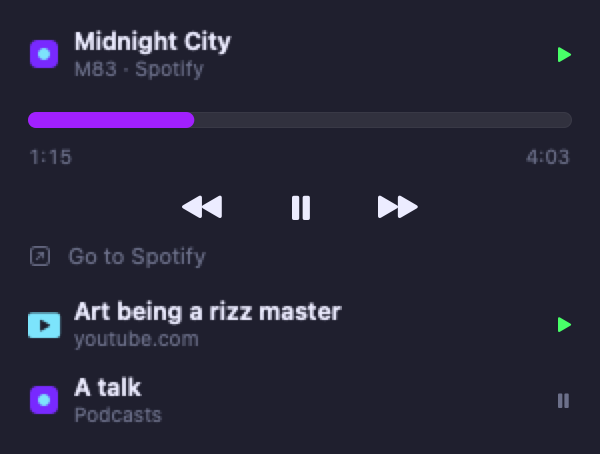
macOS lets one app take commands: the one that is Now Playing. Music.app and Spotify also take them through AppleScript. Every other app in the popup only has Go to.
In the music popup j and k move between sources and the one you are on opens. a plays or pauses it, x skips, ↩ goes to it.
Instant banners
The banner text shows at once, not a few seconds later.
gzyms reads each macOS banner through Accessibility the moment it shows and hides the real one off screen. During a macOS Focus there are no banners to read, so the text comes from the database. A macOS update can break it too. More in Banners from other apps.
Restart a hung Notification Center
Restarts it when it shows no banners. Nothing is lost.
The switch needs Instant banners and Instant app icons.
Sometimes apps send notifications and Notification Center shows no banner. Restart runs killall NotificationCenter and macOS starts it again. Nothing in it is lost, the screen flickers for a second. The button works even with the switch off, and it also sits next to the No banners warning in Settings → Permissions.
The switch, or nc_auto_restart = true under [notifications], does it by itself, at most once in 10 minutes and once per hang. If no banner shows after the restart, gzyms warns you and stops. It is off by default. Each restart lands in the anomaly log as nc_restart or nc_restart_failed. A Focus that holds banners back does not count as a hang.
Open the exact chat
A click opens the right chat or thread, not just the app. Set each app in Apps.
gzyms presses the macOS banner while it is up, or its row in Notification Center, opened off screen, once the banner is gone. More in Click opens the original.
Instant app icons
The app’s icon shows at once, the text follows.
gzyms follows the macOS notification log, so an app’s icon shows the moment it sends something, before the text. A macOS update can change the log. Then the icon just comes with the text.
Notifications from other apps
Needs Full Disk Access.
Slack, Mail and the rest also reach gzyms through the private notification database of macOS. It is the backup for banners gzyms could not read, and for apps that show none. Reading it needs Full Disk Access. A macOS update can move it.
FAQ
Why can’t I approve my agent from gzyms?
Because saying yes to something you haven’t read is a bad habit. If you click “approve” all day, your agent harness isn’t set up for you. Ask for approval only when there is really something to check.
Still want it? Ask your agent for a plugin. Every gzyms banner has two actions built in.
Requirements
macOS 26 on Apple Silicon. gzyms needs Accessibility (banner keys, Dock badges) and Full Disk Access (notifications from other apps). Calendars is optional. A wizard walks you through it on first launch, and again when the bar shows a warning sign. Settings → Permissions shows every grant any time.
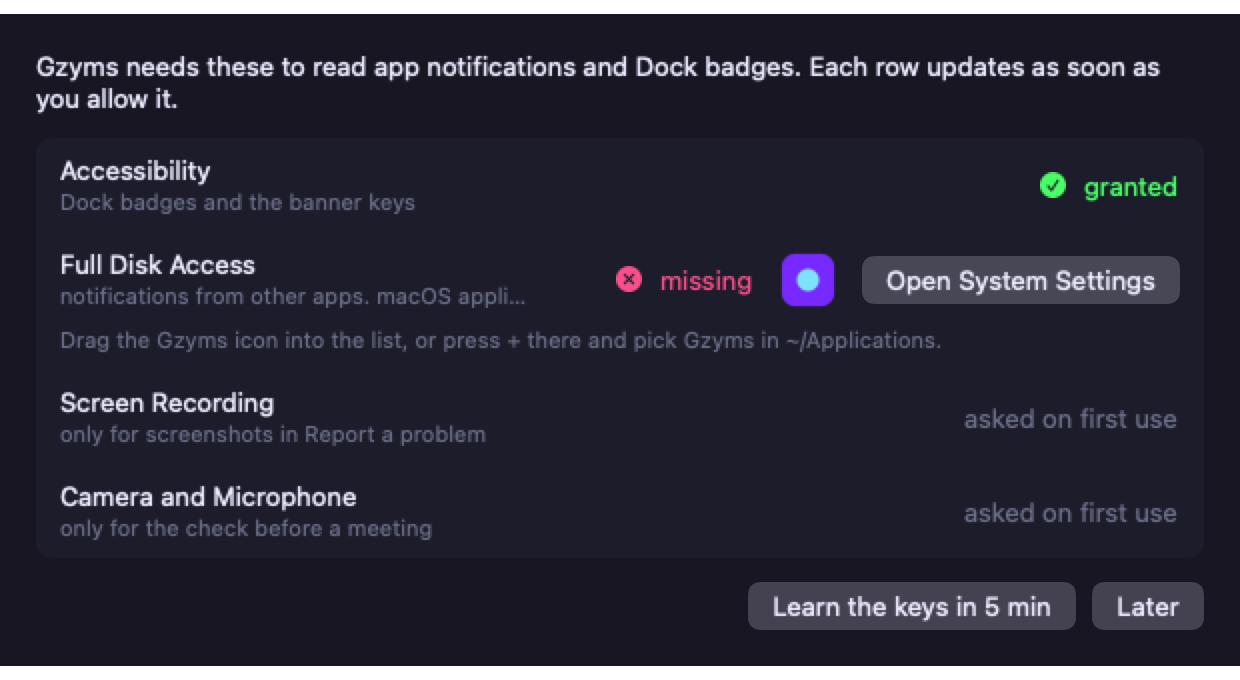
Builds are signed and notarized by Apple, so gzyms opens like any other app. This is 0.0.1, so expect rough edges. Tell us in Discussions when something breaks.